Table of Contents
If your home Wi-Fi works perfectly in the living room and gives up by the time it reaches the bedroom, the problem is probably not your internet plan. It is the single router in the corner of the house trying to push a signal through concrete walls, a staircase and a few hundred square feet of furniture.
This is the problem TP-Link Deco was built to solve. Deco is a mesh Wi-Fi system: instead of one router doing all the work, you place two or three small units around your home. They talk to each other and create one seamless network. You walk from room to room, your phone stays connected, and your video call does not drop.
I have spent about 30 years in IT infrastructure and managed wireless networks, and I have seen the same pattern for homes and offices alike. The hardware is rarely the failure point. Placement and setup are. A good Deco badly installed performs worse than a modest one installed well.
This guide covers how to install TP-Link Deco at home properly, from unboxing to final tuning, along with the mistakes I see most often in Indian homes.
What Is TP-Link Deco and How Is It Different from a Normal Router?
A traditional router broadcasts from one point. The farther you move from it, the weaker the signal. Many people buy a “range extender” to fix this, but extenders create a second network name, halve your speed on the extended side, and make your phone cling to the weak signal instead of switching to the strong one.
TP-Link Deco mesh Wi-Fi works differently:
- One network name and password. Every Deco unit broadcasts the same Wi-Fi network (SSID), so there is nothing to switch manually.
- Intelligent handoff. Your phone or laptop is moved to the closest, strongest unit as you walk through the house.
- Central control from one app. You manage everything from your phone: guest network, parental controls, device list and firmware updates.
- Scalable. You can start with two units and add a third later.
Deco comes in several generations, including Wi-Fi 5, Wi-Fi 6, Wi-Fi 6E and newer Wi-Fi 7 models. The installation steps are almost identical across all of them, so this guide applies whichever model you bought.
Before You Start: What You Need
Gather these before you open the box:
- Your TP-Link Deco units, either a 2-pack or 3-pack. One unit becomes the main router and the others become satellites (also called nodes).
- Your internet source, which can be an ONT or fibre modem from your ISP, a cable modem, or a combined modem-router.
- A smartphone with Wi-Fi, Bluetooth and location services turned on.
- The Deco app, free on the Google Play Store and Apple App Store.
- An Ethernet cable. One comes in the box.
- Your ISP login details, only if your connection uses PPPoE. Many Indian broadband and fibre connections use dynamic IP (DHCP) and need nothing, but if your ISP gave you a username and password for the internet connection, keep them handy.
- A free power socket near your modem for the first unit.
Time needed: about 15 to 20 minutes for the basic setup, plus another 10 to 15 minutes for placement and tuning.
Step 1: Decide Your Setup Mode (Router or Access Point)
This is the step most guides skip, and it causes the most trouble later.
Option A: Deco as your main router (recommended if possible).
Your ISP’s modem only provides the internet connection, and Deco handles Wi-Fi and routing. This gives you the best performance and features.
Option B: Deco in Access Point (AP) mode.
If your ISP’s device is a combined modem-router that you cannot put into bridge mode, or you need to keep it for TV or phone services, run Deco in AP mode. Your existing router keeps handling routing, and Deco only provides mesh Wi-Fi.
Why it matters: if you connect Deco to an ISP router that is still acting as a router, you can end up with double NAT (two routers each translating addresses). It often works fine for browsing, but it can cause problems with gaming, video calls, CCTV remote access and port forwarding.
If you are unsure, start with Option A. The Deco app detects the connection type during setup and will guide you.
Step 2: Power Down and Connect the Main Deco Unit
Choose one unit to be your main Deco. Then:
- Turn off your modem or ONT. If it has a backup battery, remove it briefly.
- Connect the Ethernet cable from the modem’s LAN or Ethernet port to one of the Ethernet ports on the Deco unit. On most models both ports work, but check your manual if the ports are labelled.
- Power on the modem and wait about a minute for it to boot fully.
- Plug the Deco unit into power.
Wait for the LED on the Deco to pulse blue. This means the unit is ready for setup. The first start-up can take a minute or two.
Tip: if the LED does not pulse blue, hold the reset button on the underside for about 5 seconds to restore factory settings, then wait for the pulsing blue light again.
Step 3: Download the Deco App and Create Your TP-Link ID
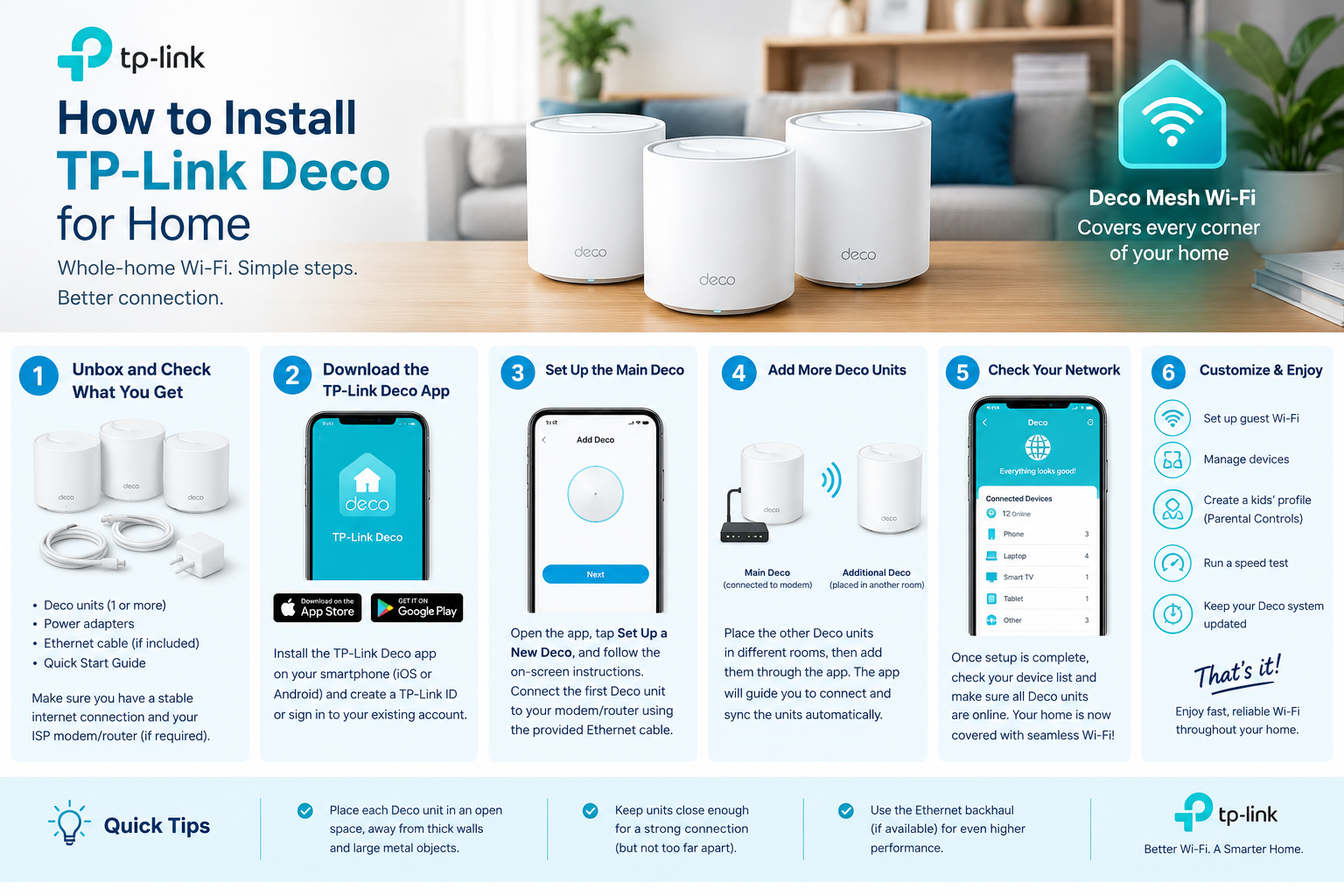
- Download the TP-Link Deco app from the Play Store or App Store.
- Open it and sign up for a TP-Link ID with your email address, or log in if you already have one.
- Tap “+” or “Set up a Deco” and choose your model if the app asks.
The TP-Link ID is what lets you manage your network remotely when you are away from home, so use an email address you will always have access to and avoid a temporary one.
For families and small businesses: keep your credentials safe and consider sharing manager access through the app instead of sharing the main account password.
Step 4: Run the Deco App Setup
This is the core of the Deco app setup process. The app walks you through it screen by screen:
- Select your Deco model from the list (or let the app detect it).
- Confirm your modem is connected. The app will ask whether you have already plugged the Deco into your modem and powered it on. You have, so tap continue.
- Allow Bluetooth and location permissions. The app uses Bluetooth to find the Deco unit nearby. This is why those settings must be on.
- Select your Deco unit when the app finds it.
- Choose a location name for the unit, such as “Living Room.” You can rename it later.
- Detect the connection type. The app will usually auto-detect Dynamic IP (the most common option). If your ISP uses PPPoE, enter the username and password they provided. If it uses a static IP, enter those details.
- Create your Wi-Fi name and password.
- Choose a name you will recognise easily.
- Use a strong password of at least 12 characters, mixing letters, numbers and symbols.
- Avoid including your family name or phone number in the Wi-Fi name.
- Wait for the Deco to apply settings. Your phone will disconnect from the Deco’s temporary setup network and ask you to reconnect to your new Wi-Fi name. Reconnect when prompted.
When setup completes, the LED turns solid green on most models, which means the main Deco is online and working.
Step 5: Add the Additional Deco Units
Now for the “mesh” part. The first unit is working. Adding the others is simpler.
- In the Deco app, tap “+” and choose Add Deco.
- Plug the second unit into power at its intended location. For this first pairing it can be close to the main unit, which makes setup faster. You will move it afterwards.
- Wait for the LED to pulse blue.
- The app detects the new unit. Select it, name its location (for example “Bedroom” or “Upstairs”) and wait while it syncs.
- Repeat for the third unit if you have one.
After pairing, the satellite will turn solid green when it connects well to the main unit. If you paired it next to the main Deco, you can now unplug it and move it to its final spot, as explained next.
Step 6: Place Your Deco Units Correctly (This Matters Most)
This step matters more than any other. Here is what I tell clients about placing mesh nodes.
The Golden Rule: Not Too Close, Not Too Far
Place each satellite where the signal from the previous unit is still strong, but at the edge of the area you want to cover. If you place it too close, you waste coverage. If it is too far, the link between units is weak and the whole system slows down.
A good rule of thumb is to place satellites one room or about 7 to 10 metres away from the main unit, with as few walls between them as possible. Indian homes often have thick brick and concrete walls and RCC slabs, so two floors apart can feel much farther than the distance suggests.
Placement Do’s
- Place units at a central, open location, ideally in the middle of the house rather than in a corner.
- Keep them elevated, on a shelf or table, about waist to chest height or higher.
- Keep them in the open, not inside cabinets, TV units, or behind the sofa.
- Place one unit on each floor in a multi-storey home, roughly above or below each other.
- Use the app’s signal indicator. After placing a satellite, the app shows the connection quality (good, fair, poor). Aim for “good.”
Placement Don’ts
- Don’t put units next to microwaves, cordless phones or baby monitors. These interfere with 2.4 GHz signals.
- Don’t hide them behind or beside large metal objects, such as fridges, steel almirahs, or mirrors.
- Don’t place units near water tanks, aquariums, or thick concrete pillars. Water and dense material absorb Wi-Fi signals.
- Don’t daisy-chain too many units. Two or three well-placed units usually cover an average Indian home. More than that rarely helps unless the house is very large.
A Quick Example
Take a three-bedroom flat with the modem in the living room:
- Main Deco: in the living room near the modem.
- Satellite 1: in the corridor between the bedrooms, not inside one bedroom.
- Satellite 2 (if needed): near the study, balcony or terrace room, wherever signal drops.
For a two-storey independent house:
- Main Deco: ground floor, central location.
- Satellite 1: first floor, directly above or near the staircase landing.
- Satellite 2: the far end of whichever floor still has a weak spot.
Step 7: Use Wired Backhaul If You Can
By default, Deco units talk to each other wirelessly, which uses some of the available bandwidth. If your home has Ethernet cabling between rooms, you can connect the Deco units with cables instead. This is called wired backhaul.
Benefits:
- Much higher and more stable speeds
- Lower latency, which is better for gaming and video calls
- Full wireless capacity available for your devices instead of for inter-unit traffic
How to set it up:
- Run an Ethernet cable from the main Deco’s second port (or from your switch) to the satellite’s Ethernet port.
- Plug the satellite into power.
- The Deco app detects the wired link automatically. You can confirm it in the app under the unit’s connection details.
If you are renovating or building, run Cat6 cabling to key rooms before the walls are finished. It is the single best upgrade for any home network, whichever Wi-Fi product you use. Even a Deco unit placed far away works at full strength when connected by cable.
Step 8: Update Firmware and Configure Key Settings
Once everything is green and working, spend 10 minutes on these settings.
1. Update the firmware
Open the app, go to More → Advanced → Firmware Update (menu names can vary slightly by app version), and install any available updates. Updates improve stability and security. Do this before you start loading devices onto the network.
2. Turn on automatic updates
If your model offers auto-update, enable it and choose a quiet window like 3 a.m. so it does not interrupt anyone.
3. Set up a guest network
Create a separate guest network for visitors, with its own password. This keeps your personal devices, laptops and smart home gadgets away from people who only need internet access.
4. Enable parental controls (if needed)
The app lets you create profiles for family members, apply content filters, set time limits and pause internet to certain devices. This is useful for children’s study time and bedtime.
5. Reserve IPs for important devices
If you have a printer, CCTV recorder or NAS, assign them a fixed IP address through the app so they never “move” on the network.
6. Review connected devices
Check the device list for anything unfamiliar. Rename your devices (“Papa’s Phone,” “Living Room TV”) so the list is easy to read.
7. Check Wi-Fi band settings
Most Deco systems combine 2.4 GHz and 5 GHz (and 6 GHz on some models) under one name and steer devices automatically. Leave this as default unless an older smart-home device refuses to connect. In that case, check your model’s advanced options.
Step 9: Test Your Coverage and Speed
Do not skip testing. Walk through the house with your phone and check:
- Signal strength in each room, using the Deco app’s connection indicator or a Wi-Fi analyser app.
- Speed tests at several locations. Compare these with your ISP plan. Remember that Wi-Fi speeds are always lower than the wired speed, so a result of 70 to 80 percent of your plan on a good connection is normal.
- Roaming. Start a video call or music stream in one room and walk to another. It should continue without a drop.
If a room is still weak, move the nearest Deco unit a little closer to that area, or add a third unit. Small changes of 2 to 3 metres can make a big difference.
Common Problems and How to Fix Them
Problem: The Deco app can’t find the unit
- Make sure Bluetooth and location are on, and the app has permission.
- Check that the LED is pulsing blue, not solid or off.
- Move your phone close to the Deco unit.
- Restart the app and, if needed, reset the unit.
Problem: Internet not working after setup
- Confirm the Ethernet cable goes into the modem’s LAN port, not a WAN or other port.
- Restart the modem, then the Deco, in that order.
- Check whether your ISP needs PPPoE credentials and enter them if so.
- Ask your ISP whether they lock the connection to a specific device (MAC binding). Some do, and the ISP may need to update it.
Problem: LED is yellow or red
- On the main unit, red usually means no internet. Check the modem and cable.
- On a satellite, yellow means the link to the main unit is weak, so move it closer.
- Red on a satellite means it has lost connection with the main Deco entirely.
- LED meanings differ slightly between models, so check the manual for yours.
Problem: Slow speeds on satellites
- Move the satellite closer to the main unit or reduce the obstacles between them.
- Use wired backhaul if cabling is available.
- Make sure there is no interference from nearby appliances.
Problem: Double NAT warning or gaming issues
- Put the ISP’s router into bridge mode (call your ISP if you cannot do this yourself), or
- Set your Deco to Access Point mode and let the ISP router handle routing.
Problem: Devices keep disconnecting
- Update the Deco firmware.
- Rename your Wi-Fi network and remove any special characters.
- Remove old saved networks on your device, then reconnect.
How to factory reset a Deco unit
Press and hold the reset button for about 5 seconds until the LED changes, then release and wait for the pulsing blue light. You will need to run the setup again from the app.
How Many Deco Units Do You Need?
As a rough guide for typical Indian homes:
| Home size | Suggested units |
|---|---|
| Up to 1,000 sq ft (1–2 BHK flat) | 1–2 units |
| 1,000 – 2,500 sq ft (3 BHK or small villa) | 2–3 units |
| 2,500 sq ft and above, or 3+ floors | 3 or more, ideally with wired backhaul |
These are starting points. Construction material matters more than floor area. A 1,200 sq ft flat with thick walls may need more units than an open 1,800 sq ft layout.
Is TP-Link Deco Right for Your Home?
Deco works well for most households that need dependable coverage, simple management and reasonable cost. It is a strong choice if:
- You have two or more floors, or many rooms
- Your current router leaves dead spots
- Several people stream, work from home or study online at the same time
- You want a system that non-technical family members can use
It may not be the best fit if you need advanced VLANs, extensive port control, enterprise-grade policies or very large coverage. In those cases a managed solution using access points and a proper controller, such as Ubiquiti UniFi or Aruba, is a better choice. Most home users never need to go that far.
When to Call a Professional
DIY setup suits most homes, but get professional help if:
- Your home is large, multi-storey, or has very thick construction
- You need structured Ethernet cabling or PoE access points
- You run a home office or work-from-home business where downtime costs money
- You have CCTV, smart-home automation and many devices that need a properly designed network
- You have tried everything and still have dead spots
A site survey and correct placement often solve in an hour what months of trial and error cannot.
At Rational Systems, we have designed and managed wireless networks across Delhi NCR for homes, offices and commercial spaces for about three decades. If you want your network designed once and done right, reach out to us at rational.co.in.
Quick Installation Checklist
- Choose router mode or AP mode
- Power off the modem and connect the main Deco via Ethernet
- Power on the modem, then the Deco, and wait for the pulsing blue LED
- Download the Deco app and create a TP-Link ID
- Complete the app setup and create a strong Wi-Fi password
- Add satellite units one at a time
- Place units centrally, elevated and in the open
- Use wired backhaul where possible
- Update firmware and enable automatic updates
- Set up a guest network and parental controls
- Test speed and roaming in every room
Frequently Asked Questions
1. Can I install TP-Link Deco without the app?
In practice, no. The Deco app is the standard way to set up and manage the system, and most models do not offer a full web-based setup like a traditional router.
2. Do I need to replace my ISP’s router?
Not always. You can connect Deco to the ISP device and run it in router mode (ideally with the ISP device in bridge mode), or run Deco in AP mode if you must keep the ISP router active.
3. Can I mix different Deco models?
Often yes, but only certain models are compatible. Mixing generations can limit performance to the slower unit’s capabilities. Check TP-Link’s compatibility list before buying.
4. Will Deco make my internet faster?
Deco cannot increase the speed your ISP provides. What it does is deliver that speed more consistently across your home, especially in rooms where the old router was weak.
5. How far apart should Deco units be?
Typically 7 to 10 metres apart with minimal obstruction, though walls and construction materials affect this. Use the app’s signal indicator to confirm each unit has a good link.
6. Can I use Deco if I already have another mesh system?
You should not run two mesh systems together on the same network as routers. Replace the old system or put one into AP mode.
7. How often should I update the firmware?
Check at setup and then keep auto-update on. If you prefer manual updates, check monthly.
8. What should I do if my Deco keeps going offline?
Restart the modem and Deco, check cables, update firmware and verify placement. If problems continue, contact your ISP to rule out a line issue, or a network professional to check the setup.
Final Thoughts
Installing TP-Link Deco is easy: plug in, open the app, follow the steps. Getting great performance from it comes from the decisions around those steps: choosing router or AP mode, placing units sensibly, using cables where possible and keeping the firmware current.
Do those four things and you will have a home network that simply works, with no dead spots and no need to think about Wi-Fi.
If you would rather have an expert handle the survey, cabling and setup, the team at Rational Systems is happy to help.