Table of Contents
Think about a normal Tuesday in your office.
Someone is on a video call with a client. Another person is uploading a large file to the shared drive. A third has just plugged a personal phone into the Wi-Fi. The accounts team is logged in to the bank portal, and a new joiner is trying to get their laptop connected.
Everything works, until it doesn’t. The call freezes, the upload stalls, or a file goes missing. Or someone clicks a link in an email that looked fine.
Most businesses do not think about their network until one of these moments. By then, the cost is already real: lost hours, frustrated staff, an embarrassed conversation with a client, and sometimes lost data.
At Rational Systems, we have spent about 30 years designing and supporting IT infrastructure and managed wireless networks for offices across Delhi NCR. The pattern we see is consistent. Businesses rarely fail because they lack technology. They struggle because the technology was added piece by piece, with no thought for how it works together.
The question we ask every client is simple: is your office network ready for the way your team actually works?
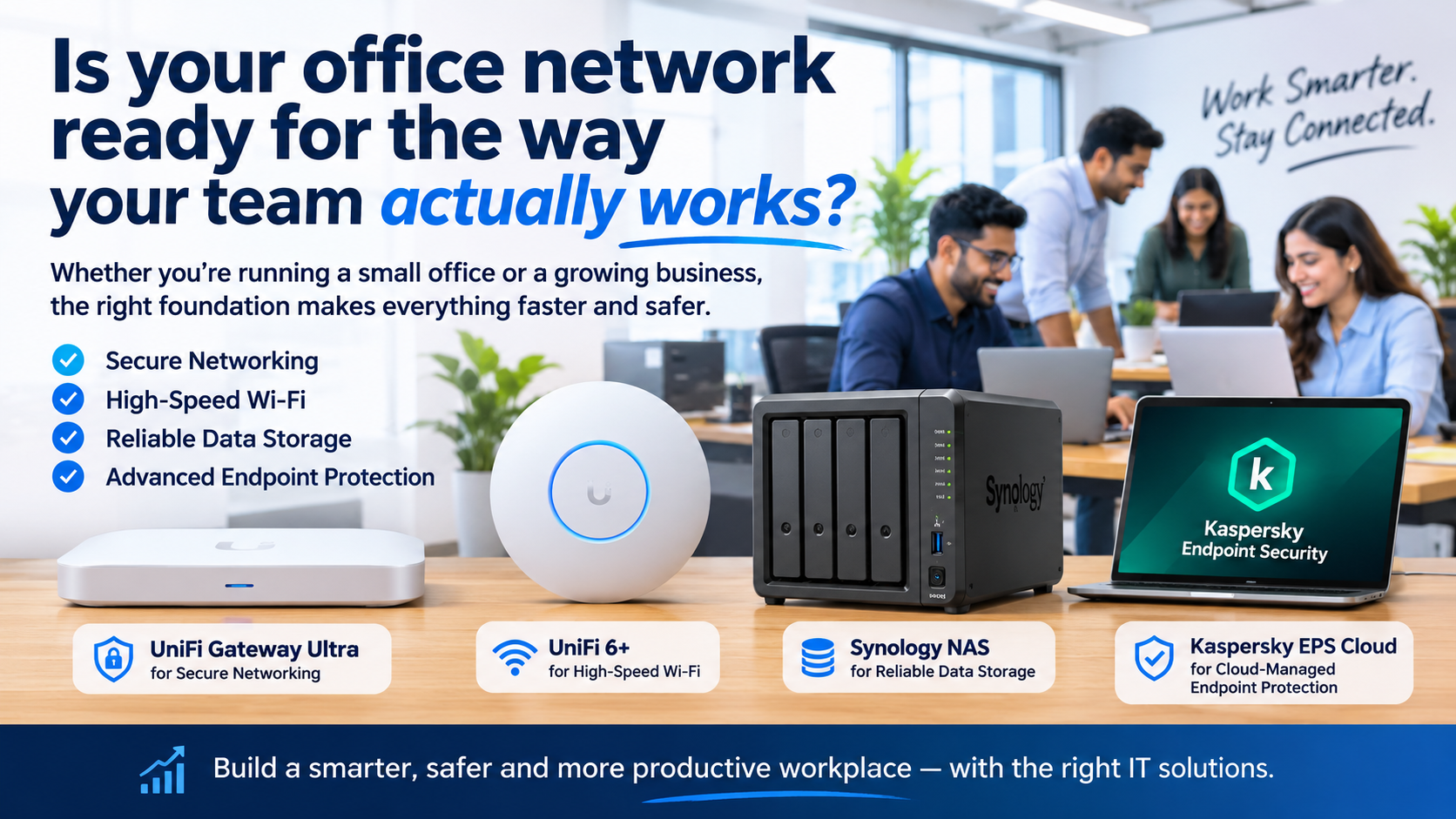
This guide explains what a ready network looks like and the four building blocks we are recommending right now:
- UniFi Gateway Ultra for secure networking
- UniFi 6+ for fast, reliable Wi-Fi
- Synology NAS for dependable data storage
- Kaspersky EPS Cloud for cloud-managed endpoint protection
These are not the only good products on the market. We recommend them because we have seen them perform well in small and growing offices, and because they work well together without needing a large IT team to run them.
How Offices Really Work Today
Before choosing any product, it helps to look at how work has changed. A network designed ten years ago assumed a fixed picture: desktops at desks, one internet line, files on one computer, and an antivirus installed once and forgotten.
Today’s office looks different:
- Laptops and phones move around. Staff walk between the reception, the meeting room and the pantry with devices that expect a continuous connection.
- Work lives in the cloud. Email, accounting software, CRM and video meetings all depend on a stable internet connection.
- Hybrid work is normal. Some staff work from home and connect to office resources remotely.
- Data is the business. Client files, invoices, drawings and databases are the most valuable things you own.
- Threats are constant. Phishing emails, ransomware and unsafe downloads reach small businesses just as often as large ones, and small businesses usually have fewer defences.
A good network for this kind of office has four qualities. It is secure, fast, reliable, and simple to manage. Each product below addresses one of these.
1. UniFi Gateway Ultra: The Front Door of Your Network
What it does
Every device in your office reaches the internet through one point, the gateway (often loosely called the “router”). It decides what traffic goes in and out, protects the network from outside threats, and keeps your devices organised.
The UniFi Gateway Ultra is a compact gateway from Ubiquiti’s UniFi range, built for small and growing offices. It brings routing, firewall protection and network management into one device that you control through the UniFi interface.
Why we recommend it
Security is built in. A proper firewall with intrusion detection and prevention features helps block suspicious traffic before it reaches your computers. Many small offices still run on a basic ISP-supplied router that has none of this.
You can see your network. The UniFi dashboard shows which devices are connected, how much bandwidth they use and where problems are. When someone says “the internet is slow”, you can look at the actual cause instead of guessing.
It lets you separate traffic. You can keep staff devices, guest Wi-Fi and sensitive systems on different network segments. A visitor connecting to your guest Wi-Fi should never be able to reach your file server. With the right setup, they cannot.
It grows with you. When you add more access points, switches or cameras later, they all join the same management system. You are not starting over each time.
A practical example from the field
A common situation we see: an office of around 20 people running on the router that came free with the broadband connection. Wi-Fi drops at certain times, guest devices share the same network as accounting computers, and nobody knows what is connected.
Replacing that single device with a properly configured gateway and splitting the network into staff, guest and device segments solves several problems in one visit. It is not glamorous work, but it is often the most valuable hour of the project.
Things to keep in mind
- A gateway is only as good as its configuration. Installing the hardware with default settings captures only a fraction of the benefit.
- Check that your internet plan and the gateway’s throughput suit each other. If your office uses a very fast fibre line or many simultaneous users, confirm the model’s rated performance with the security features switched on, since that is the real working figure.
- If you rely on two internet lines for redundancy, plan the failover design from the start.
2. UniFi 6+: Wi-Fi That Keeps Up With Your Team
What it does
The UniFi 6+ is a Wi-Fi 6 access point designed for offices that need dependable wireless coverage without enterprise complexity. It is powered over the network cable (PoE), so you only need to run one cable to each unit.
Why we recommend it
Better handling of many devices. Wi-Fi 6 was designed for environments where lots of devices compete for the airwaves. Think laptops, phones, tablets, printers and smart devices all at once. Compared with older Wi-Fi generations, it handles this load more gracefully.
Cleaner installation. One cable carries both data and power. There is no need for a separate power adapter near the ceiling, which makes installation tidier and easier to maintain.
Roaming that works. In a well-planned deployment with more than one access point, a person on a video call can walk from one room to another without the call dropping. This sounds small, but it is one of the things staff notice most.
Centralised management. All access points are managed from the same UniFi system as the gateway. You can update, monitor and adjust everything from one screen.
The part most people skip: planning
Here is something we have learned from many years of site work. Wi-Fi problems are usually placement problems, not product problems.
Buying an access point and placing it wherever a cable happens to be is the most common mistake we see. Walls, glass partitions, metal cabinets and even a crowded pantry area affect signal strength in ways that are hard to guess.
A proper approach looks like this:
- Walk the site. Note the layout, wall materials, number of users in each area, and where people actually sit and meet.
- Decide on the access point count and positions. More units placed well often beat one powerful unit placed badly.
- Plan cabling and PoE. Make sure the switch powering the access points has enough PoE capacity.
- Test after installation. Check signal strength and speed in real working spots, not just near the access point.
- Adjust. Fine-tune channels and power levels based on the results.
A short site survey before purchase can save repeated rework.
Who it suits
The UniFi 6+ is a good fit for small offices, clinics, showrooms, co-working spaces and similar environments. For very dense settings such as large conference halls or high-footfall venues, a different class of access point may be a better choice. We would assess that for you rather than recommend one model for everything.
3. Synology NAS: A Safe Home for Your Business Data
What it does
A NAS (Network Attached Storage) is a dedicated storage device that sits on your office network. Instead of files being scattered across individual laptops, USB drives and personal cloud accounts, they live in one controlled place that everyone with permission can reach.
Synology is one of the most trusted names in this category, known for stable software and a wide range of useful features.
Why we recommend it
One organised place for files. Shared folders with proper permissions mean the accounts team sees accounts files, and the design team sees design files. People stop emailing versions back and forth.
Protection against drive failure. A NAS can hold multiple drives configured so that a single drive failure does not mean lost data. This protection is called RAID.
Snapshots and version history. If a file is accidentally deleted or overwritten, or if ransomware encrypts files, snapshot features can help you roll back to an earlier version.
Backup flexibility. Synology includes tools to back up your NAS to another device, another location or a cloud service. It can also back up your laptops and servers to the NAS.
Remote access. With the right security configuration, staff can reach files from outside the office.
An important honesty point: RAID is not backup
This is the single most misunderstood point in small business IT, so we will state it plainly.
RAID protects you if a drive fails. It does not protect you if someone deletes a folder, if ransomware encrypts everything, if the device is stolen, or if there is a fire or flood.
A sound approach follows the 3-2-1 principle:
- 3 copies of your important data
- 2 different types of storage
- 1 copy kept off-site or offline
Your NAS can be a key part of this plan, but it should not be the only part. We always ask clients where their second and third copies live, and the answer is often “nowhere”. That is a risk worth fixing before it becomes a loss.
Sizing and setup tips
- Choose capacity based on current data plus realistic growth over the next three to five years.
- Use drives rated for NAS workloads, which are built for continuous operation.
- Set up user accounts, groups and permissions carefully. Avoid giving everyone access to everything.
- Turn on automatic updates or schedule regular update checks.
- Restrict remote access and enable two-step verification for administrator accounts.
- Test restoring a file at least occasionally. A backup you have never tested is only a hope.
4. Kaspersky EPS Cloud: Protecting Every Device From One Place
What it does
Even the best network and storage cannot protect you if a single laptop gets infected. Endpoint protection secures the devices people actually use: computers, laptops and servers.
Kaspersky EPS Cloud (Endpoint Security Cloud) is managed through a cloud console. That means you do not need to buy and maintain a separate management server in your office. IT administrators, or your managed services partner, can monitor and manage protection from a web browser.
Why we recommend it
Cloud management suits modern offices. Devices can be protected and monitored whether they are in the office or at an employee’s home, as long as they are connected to the internet.
Central visibility. You can see which devices are protected, which need attention and what threats have been detected, in one place.
Lower overhead. With no on-premises management server, there is less hardware to maintain and fewer things to update.
Layers beyond basic antivirus. Endpoint security can include protection against ransomware, web and email threats, and controls over which applications or devices can be used. Exact features depend on the plan you choose, so we always confirm that the plan matches the client’s needs.
A realistic view of security
No single product makes an office safe. Security works in layers, and people are one of those layers.
Most successful attacks on small businesses start with a human action: opening a malicious attachment, entering a password on a fake login page, or approving a payment request from a spoofed email. Technology reduces the risk, but staff awareness matters just as much.
We suggest pairing endpoint protection with:
- Simple staff training on spotting phishing and suspicious links
- Strong, unique passwords with a password manager
- Two-step verification on email and critical accounts
- Regular software and operating system updates
- Limited admin rights, so everyday users cannot install anything they like
How the Four Pieces Work Together
The real value of this setup is not in any single product. It is in how they combine.
| Layer | Product | Role in your office |
|---|---|---|
| Network edge | UniFi Gateway Ultra | Controls and protects traffic in and out |
| Wireless | UniFi 6+ | Delivers dependable Wi-Fi to staff and guests |
| Data | Synology NAS | Stores, organises and protects your files |
| Devices | Kaspersky EPS Cloud | Defends every computer and laptop |
Think of it like a well-run building. The gateway is the security desk at the entrance. The Wi-Fi is the corridor system that gets people where they need to go. The NAS is the records room. Endpoint protection is the lock on every individual door.
Remove one of these and the others carry more risk. Put them all together, configured properly, and you have a network that is secure, fast, reliable and manageable.
What a Typical Rollout Looks Like
For a small or growing office, a sensible project follows these stages:
Stage 1: Assessment. We review your current setup, internet connection, number of users, applications, data volume and any past problems. We also ask what you worry about most.
Stage 2: Design. We plan the network layout, access point positions, storage capacity, backup approach and security policies before buying anything.
Stage 3: Installation and configuration. Hardware is installed, cabling is tidied, and every device is configured, rather than left on defaults.
Stage 4: Migration. Files are moved to the NAS in an organised way, permissions are set and staff devices are enrolled in endpoint protection.
Stage 5: Testing. We test Wi-Fi coverage, failover, backup and restore, and security settings in real conditions.
Stage 6: Handover and support. Your team gets simple documentation and a short walkthrough. Ongoing monitoring and support keep things healthy.
Good IT work should be boring to live with. When it is done well, you stop noticing it.
Is Your Office Ready? A Quick Self-Check
Answer these honestly:
- Do you know exactly which devices are connected to your network right now?
- Is your guest Wi-Fi separate from your office network?
- Does Wi-Fi perform well in every room where people work?
- Are your important files stored in one managed location instead of on individual laptops?
- Do you have at least one backup copy that is not in your office?
- Have you ever tested restoring a file from backup?
- Can you see the security status of every company computer from one place?
- Do you know who to call, and how fast they respond, if the network goes down?
If you answered “no” or “not sure” to more than two or three of these, your network has gaps worth closing.
Frequently Asked Questions
Is UniFi suitable for a small office?
Yes. UniFi products are widely used in small and medium offices because they offer business-grade features, central management and room to grow, without needing a dedicated network engineer. That said, good results depend on correct design and configuration.
Do I need a NAS if I already use cloud storage?
Many businesses use both. Cloud storage is great for collaboration and remote access. A NAS gives you local speed, control over your data, and an easy way to hold backups. The right mix depends on your workflow, data volume and compliance needs.
What is the difference between antivirus and endpoint protection?
Traditional antivirus mainly scans for known threats on a single device. Endpoint protection is typically managed centrally and can add features such as ransomware defence, web filtering, application controls and reporting across all your devices.
How many access points does my office need?
It depends on the floor area, wall construction and number of users, not just on square footage. A site visit or survey gives a much more reliable answer than a rule of thumb.
Can all of this be managed remotely?
Largely, yes. UniFi and Kaspersky EPS Cloud are both managed through web-based consoles, and Synology offers remote management too. This allows many issues to be monitored and resolved without a site visit.
What if I already have some of this equipment?
Then we start by auditing what you have. Replacing everything is rarely necessary. Often a few targeted changes fix the biggest risks.
About the Author and Rational Systems
This article is written by the team at Rational Systems Private Limited, a Delhi NCR-based IT infrastructure and managed wireless network company with about 30 years of hands-on experience. We design, install and support networks, Wi-Fi, storage and security for businesses that want their technology to work quietly in the background.
Product features and availability change over time. Always confirm current specifications and licensing details with the manufacturer or your IT partner before purchase.
Ready to Check Your Own Network?
If you are unsure whether your office network can handle how your team really works, we are happy to take a look. We will review your current setup, point out the gaps and suggest practical improvements, without pushing equipment you do not need.
Contact Rational Systems to book a network assessment for your office.