Table of Contents
The call nobody wants to make on a Monday morning
Over three decades of building and maintaining IT infrastructure across Delhi NCR, we have taken a particular kind of phone call many times. It usually comes early in the week. A file server won’t open its shares, or an accounts team can’t find last month’s data, or someone has clicked a link and a ransom note is now the desktop wallpaper.
The first question we ask is always the same: “When did you last restore from a backup?”
The answer tells us almost everything. Most businesses have a backup. Very few have one they have actually tested, stored somewhere an attacker can’t reach, and set up to be restored in hours rather than days.
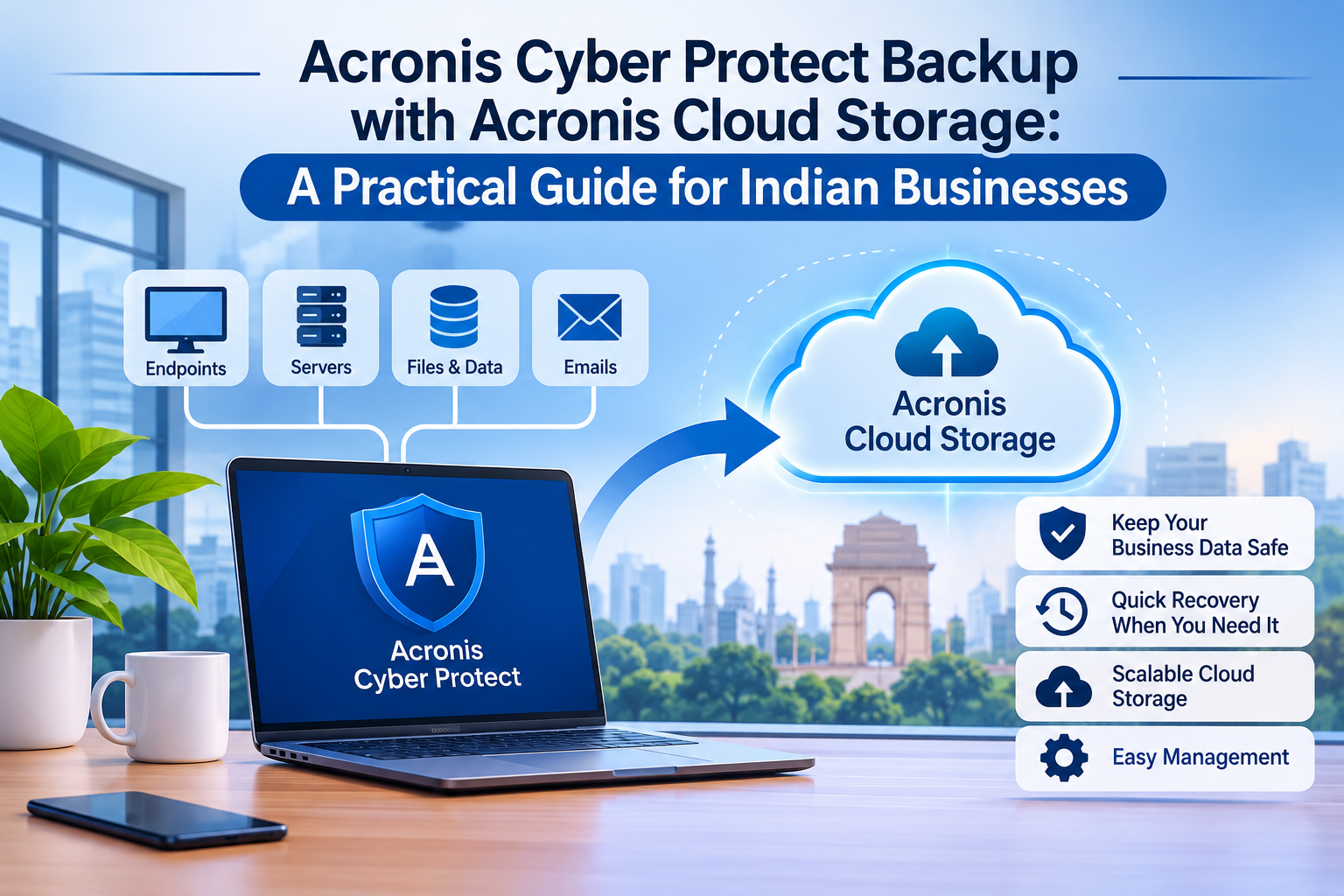
This guide is about closing that gap using Acronis Cyber Protect together with Acronis Cloud Storage. We deploy and support this combination for clients, so we will cover where it shines and where you need to be careful, not just the brochure version.
What is Acronis Cyber Protect, in plain words?
Acronis started as a backup and disk-imaging company. Over the years it combined backup with security tools, and that combination is what the “Cyber Protect” name refers to. The idea is simple: a backup tool and an anti-ransomware tool should talk to each other, instead of being two separate products from two vendors.
In practice, one agent on each computer or server does the following:
- Backs up files, folders, full disk images, applications and databases.
- Watches for ransomware behaviour, such as a process suddenly encrypting hundreds of files, and can stop it and help roll back the damage.
- Scans for vulnerabilities and missing patches, so the weak spots that attackers use are visible to you.
- Gives you a single console to see what is protected, what failed overnight, and what needs attention.
A quick note on naming, since it confuses many people. The consumer product you may remember as Acronis True Image was renamed Acronis Cyber Protect Home Office in 2022. For businesses, the line is Acronis Cyber Protect (Standard, Backup Advanced and Advanced editions), plus the partner-delivered Acronis Cyber Protect Cloud. This blog focuses on the business side.
Higher editions add useful controls. According to Acronis, the Advanced and Backup Advanced editions add features such as centralized management of backup plans, tape backup support, SAN storage snapshots and Acronis Notary. If you run more than a handful of machines, centralized plan management is worth paying for, because it means you set the rules once rather than visiting each PC. acronis
And where does Acronis Cloud Storage fit in?
Acronis Cyber Protect is the engine. Acronis Cloud Storage is one of the destinations it can send backups to.
You can back up to several places: a local disk, a NAS, a network share, or the Acronis cloud. Many businesses do the first three and stop there. The problem is that anything on your own network can be reached by an attacker who gets inside your network. Cloud storage gives you a copy that sits outside your office, outside your domain, and outside the reach of a compromised admin password.
One licensing point to check before you budget: Acronis states that to use Acronis Cloud Storage you must have at least one active Acronis Cyber Protect license. So cloud storage is an add-on to the product, not a standalone service you buy by itself. acronis
Why a “local only” backup is not enough
Let me explain with a pattern we see often.
A business buys a NAS, schedules nightly backups to it, and feels safe. Then one of these happens:
- Ransomware spreads across the network. The NAS is mapped as a drive, so the malware encrypts the backups along with the originals.
- A fire, flood or theft takes out the office. Both the server and the NAS are in the same room, so both are gone.
- A power surge damages everything on the same circuit. Delhi NCR summers and monsoons make this more likely than people admit.
- A staff member deletes something and nobody notices for weeks. By the time it’s needed, the local backup has already rotated past it.
An offsite cloud copy answers all four. It is not a replacement for local backup, though. Local backup is faster to restore from, and cloud is safer against disasters. You want both.
The 3-2-1 rule, applied to Acronis
The 3-2-1 rule is the oldest sensible idea in data protection:
- 3 copies of your data (the live data plus two backups)
- 2 different types of storage (for example, a NAS and the cloud)
- 1 copy kept offsite
Here is how that looks with Acronis in a typical small or mid-size Indian office:
| Copy | Where it lives | Purpose |
|---|---|---|
| Live data | Server or workstations | Day-to-day work |
| Backup 1 | Local NAS or backup disk | Fast restores (minutes to hours) |
| Backup 2 | Acronis Cloud Storage | Survives fire, theft, ransomware |
Acronis lets you build a single backup plan that writes to both locations, so you are not juggling two tools. That alone removes a lot of the human error we see in manual setups.
What to back up (and what people forget)
Ask any team “what’s critical?” and they will say the shared drive. Then, when we dig, the list gets longer:
- File servers and shared folders
- Accounting data, including Tally, SAP, or any ERP and its database. These need application-aware backup, not just a file copy.
- Email and collaboration data, if you use Microsoft 365 or Google Workspace. Many people assume the cloud provider backs this up for them. Read the shared-responsibility terms carefully; deletion and retention rules differ from a true backup.
- Design and engineering files, which are often large and change constantly
- Laptops of senior staff, which frequently hold the only copy of important files
- Virtual machines, if you run Hyper-V or VMware
- System state and configuration, so a rebuilt server comes back the way it was
A tip from experience: back up the whole machine image for servers, not only the files. If a server dies at 11 pm, restoring an image to new hardware is far quicker than reinstalling the OS, the applications and the settings by hand.
Ransomware: how Cyber Protect helps beyond backup
Backups are your last line of defence. It is better if the attack never succeeds, and Cyber Protect adds a few layers that help:
Behavioural detection. Instead of relying only on known virus signatures, it looks at what a program is doing. A process that starts rapidly encrypting files is flagged, even if it has never been seen before.
Rollback of affected files. If some files were encrypted before the attack was stopped, they can be restored from a temporary cache or from the latest backup.
Protection of the backups themselves. Attackers know backups are the enemy of ransom payments, so they try to delete them first. Self-protection features guard the backup agent and local backup files from being tampered with.
Vulnerability assessment and patch management. Many ransomware incidents start with an unpatched system. Knowing which machines are behind on updates is half the battle.
None of this makes you immune, and anyone who claims that is selling something. What it does is shorten the time from “we’ve been hit” to “we’re back up”, which is where the real business cost lies.
Setting it up: a sensible rollout
Here is the order we follow with clients. You can adapt it for your own team.
Step 1: Take stock. List every server, PC and laptop that holds business data. Note how much data each has and how fast it changes.
Step 2: Decide your recovery targets. Two numbers matter:
- RPO (Recovery Point Objective): How much data can you afford to lose? One hour? One day?
- RTO (Recovery Time Objective): How long can you be down? Two hours? Two days?
A hospital and a small trading firm will answer very differently, and that’s fine. Your answers decide how often to back up and how much to invest.
Step 3: Size your cloud storage honestly. Calculate your current data, then add growth. Remember that backups keep multiple versions, so cloud usage is more than your raw data size. Plan for headroom rather than finding out in month eight that you’ve run out.
Step 4: Check your internet upload speed. This is the step people skip, and it causes the most disappointment. The first full backup to the cloud can take days if your upload bandwidth is modest. Plan for it: seed the initial backup over a weekend, and let incremental backups handle the rest. If your line is shared with a busy office, schedule backups outside working hours or limit the bandwidth the agent uses.
Step 5: Build the backup plan. For each group of machines, define:
- What to back up (whole machine, specific folders, databases)
- Where to (local NAS first, then Acronis Cloud Storage)
- How often (hourly, daily, or continuous for critical data)
- How long to keep versions (retention)
- Encryption, with a strong password you store safely
Step 6: Turn on encryption and write down the key. Acronis supports encrypting your backups. If you lose that password, nobody can recover your data, including Acronis. Store it in a company password manager and keep a sealed copy with a senior person.
Step 7: Enable alerts. A backup that fails silently for three weeks is worse than no backup, because it gives false comfort. Send failure alerts to a mailbox that a real person reads.
Step 8: Test a restore. Do this before you need it. Pick a file, a folder and, once a quarter, a full machine, and restore them. Time it. Write the result down.
The mistakes we see most often
After years of cleaning up after backup projects that went sideways, these are the repeat offenders:
- “Set and forget.” Backup jobs are monitored daily, or they quietly break.
- Never testing restores. A backup you haven’t restored is only a hope.
- Same password everywhere. If the Acronis console is protected by a reused or weak password, an attacker who gets it can delete your backups. Use multi-factor authentication on the console. This is non-negotiable.
- Backing up infected data. If ransomware sits quietly for weeks, your newest backups may contain it. Keep enough older versions to go back to a clean point.
- Underestimating the first upload. Covered above, but it deserves a repeat.
- No one owns it. Assign a named person, and a backup person for when they’re on leave.
Compliance and data responsibility in India
Backup isn’t only an IT matter any more. Two things are worth keeping in mind.
CERT-In directions (2022) require organisations to report certain cyber incidents to CERT-In within six hours and to retain specific logs for 180 days. A tidy recovery process and clear records make this much easier to handle under pressure.
The Digital Personal Data Protection Act, 2023 places obligations on businesses that handle personal data, including taking reasonable security safeguards. Encrypted, access-controlled backups are part of showing you took those safeguards seriously.
One honest caveat: where your cloud backup data physically sits can matter for certain regulated sectors such as banking, healthcare and government-linked work. Check the data centre locations available for your Acronis account and confirm them against your own compliance requirements before you commit. If you’re unsure, ask your IT partner to verify this in writing, and have your legal or compliance adviser review it.
How does cost work?
We won’t quote prices here, because Acronis pricing varies by edition, number of devices, storage amount, billing term and reseller, and it changes. Consumer-style plans are publicly listed, while business pricing, especially Cyber Protect Cloud, which is sold through partners and MSPs without a public rate card, is usually quoted on request. checkthat
What we can say is how to think about cost:
- Licences are generally per device or per workload (a server costs more than a laptop).
- Cloud storage is typically sold in capacity blocks, so size it properly.
- The real comparison isn’t “Acronis versus nothing”. It’s “Acronis versus the cost of a week of downtime, a ransom demand, or lost client records”.
Ask your reseller for a written quote covering licences, cloud storage, support and any setup charges, so there are no surprises.
Is Acronis the right choice for everyone?
No tool suits everyone, and we’d rather be straight about it.
It works well when:
- You want backup and security from one agent and one console
- You have a mix of Windows, Mac and Linux machines, plus servers or virtual machines
- You want an offsite copy without building your own storage infrastructure
- You prefer a managed partner to look after monitoring and restores
Look carefully at alternatives when:
- Your needs are almost entirely a single, very large virtualised environment, where other specialist tools may fit better
- You have a very slow or unreliable internet connection and a lot of data, which makes any cloud backup hard
- Your team already has deep expertise in another platform and the cost of switching outweighs the benefit
A good IT partner will tell you this up front, not push one product regardless of fit.
When to bring in a managed partner
Many Delhi NCR businesses we speak with have one overworked IT person, or none at all. Backup is exactly the kind of task that gets pushed down the list until something breaks.
A managed approach means someone else handles the daily checks, the patching, the alerts, and the quarterly restore tests, and you get a report you can actually read. At Rational Systems, we have spent around 30 years designing and supporting business networks and IT infrastructure across Delhi NCR, and backup and recovery planning is part of that work.
Quick checklist before you leave this page
- [ ] Every business-critical machine is on a backup plan
- [ ] At least one copy is offsite (Acronis Cloud Storage or equivalent)
- [ ] Backups are encrypted, and the password is stored safely
- [ ] Multi-factor authentication is on for the backup console
- [ ] Failure alerts reach a real person
- [ ] A restore has been tested in the last 90 days
- [ ] Someone is named as the owner of the backup process
If you can’t tick all seven, that is your to-do list for this week.
Frequently asked questions
Is Acronis Cyber Protect the same as Acronis True Image?
Not exactly. True Image was renamed Acronis Cyber Protect Home Office in 2022 and is aimed at individuals. Acronis Cyber Protect (Standard, Backup Advanced, Advanced) is the business line, with centralized management and additional workload support.
Can I use Acronis Cloud Storage without buying Cyber Protect?
According to Acronis, it requires at least one active Cyber Protect licence, so plan to license the product alongside the storage.
How long will my first cloud backup take?
It depends on your data size and upload speed. A few hundred GB on an ordinary office connection can take days. Start it over a weekend and let later backups run incrementally.
Will cloud backup slow down my internet?
It can, if left unrestricted. Schedule it for off-hours or cap the bandwidth the agent uses during working hours.
Is cloud backup enough on its own?
We don’t recommend it. Cloud is slower to restore large volumes from. Keep a local copy for quick recovery and the cloud copy for disasters.
How often should I test a restore?
Test individual files monthly and a full system restore at least quarterly.
Can I back up Microsoft 365 and Google Workspace too?
Acronis offers cloud-to-cloud backup options for these. Confirm the exact edition and licensing you need with your reseller.
Final thoughts
Backup is rarely exciting, and that’s rather the point. When it’s working, nobody notices. When it isn’t, everyone notices at once.
Acronis Cyber Protect with Acronis Cloud Storage gives you a solid way to follow the 3-2-1 rule, add ransomware defence on top, and keep an offsite copy that doesn’t depend on your office surviving. The tool matters less than the habits around it: monitor, encrypt, protect the console, and test restores before you need them.
If you’d like a second pair of eyes on your current setup, or want us to design and run it for you, get in touch with the Rational Systems team. We’re happy to start with a no-pressure review of what you have today.