Table of Contents
Introduction
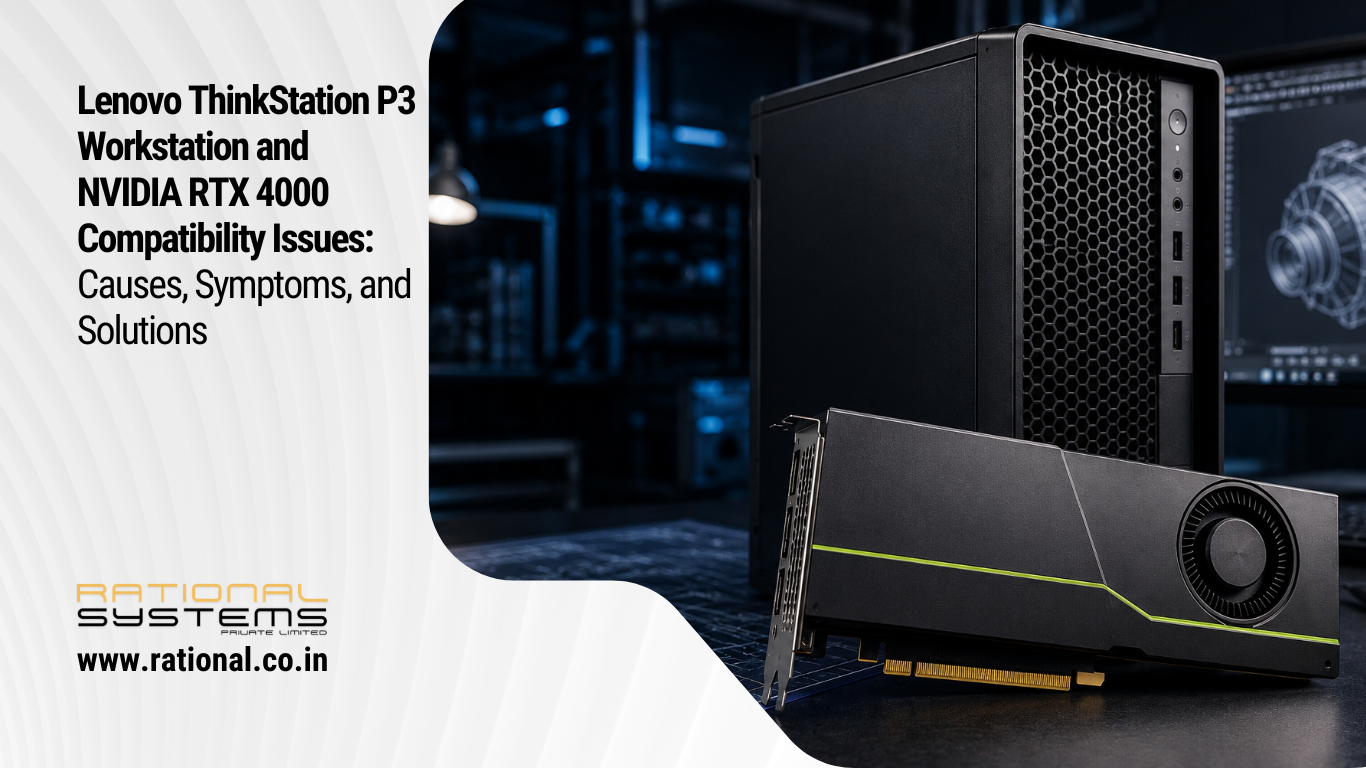
The Lenovo ThinkStation P3 series is designed for professional workloads such as CAD, 3D rendering, AI development, engineering simulations, and content creation. Many organizations upgrade these systems with NVIDIA RTX 4000-class graphics cards to boost performance. However, some users encounter compatibility issues when installing or upgrading to an RTX 4000 GPU.
These issues can range from display failures and boot problems to driver conflicts and power limitations. Understanding the root causes can help IT teams and workstation users avoid costly downtime.
Understanding the Lenovo ThinkStation P3 Platform
The ThinkStation P3 is available in Tower, Tiny, and Ultra Small Form Factor (SFF) configurations. Lenovo officially certifies specific NVIDIA professional GPUs, including various RTX Ada Generation models, depending on chassis size and power configuration. The workstation’s PCIe layout, power delivery, BIOS settings, and thermal design all influence GPU compatibility.
While the RTX 4000 Ada Generation is officially supported on certain P3 configurations, compatibility depends heavily on the exact model, power supply capacity, and BIOS version.
Common RTX 4000 Compatibility Issues
1. System Fails to Boot After GPU Installation
One of the most frequently reported issues occurs when the workstation powers on but displays no video output after installing the RTX 4000.
Typical symptoms include:
- Black screen during startup
- Lenovo splash screen freeze
- System powers on but monitor remains inactive
- Repeated restart cycles
This often happens when:
- BIOS firmware is outdated
- PCIe initialization fails
- The GPU is not fully seated
- Unsupported GPU firmware is present
2. Driver Installation Errors
Some users experience driver installation failures where NVIDIA software reports:
“No compatible graphics hardware found”
This can occur due to:
- Incorrect workstation drivers
- Incomplete Windows updates
- Legacy driver remnants
- Device identification conflicts within the operating system
Similar issues have been discussed by workstation users running Lenovo systems with NVIDIA professional GPUs.
3. Power Supply Limitations
Power delivery is one of the most overlooked causes of RTX 4000 installation failures.
The RTX 4000 Ada Generation requires significantly more power than entry-level workstation GPUs. Lenovo specifies different GPU support levels depending on the power adapter and CPU configuration used in P3 systems. In compact models, certain GPU and CPU combinations are not supported due to power and thermal constraints.
Potential power-related symptoms include:
- Random shutdowns
- GPU not detected
- Fans spinning but no display
- GPU operating at reduced performance
4. Thermal and Space Constraints
Small Form Factor and Ultra configurations have stricter mechanical requirements.
Issues include:
- GPU physically not fitting
- Double-slot card interference
- Restricted airflow
- Excessive thermal throttling
Lenovo documentation notes that larger GPUs require specific riser configurations and may not be compatible with all storage or expansion card combinations.
5. Performance Throttling
Even when the RTX 4000 installs successfully, some users report unexpected performance drops.
Potential causes include:
- Firmware-level power management
- CPU-GPU power balancing
- Thermal protection mechanisms
- BIOS limitations
Community discussions involving Lenovo workstation platforms suggest that certain GPU combinations can trigger aggressive CPU throttling under load, particularly in compact systems.
Why Official Support Matters
Many compatibility problems arise when users install GPUs that are technically compatible but not officially validated for their exact workstation model.
Lenovo validates GPUs based on:
- Power consumption
- Thermal output
- Mechanical dimensions
- BIOS compatibility
- ISV certifications
Using a Lenovo-certified RTX 4000 configuration significantly reduces the likelihood of installation and stability issues.
Troubleshooting Checklist
Before assuming hardware failure, perform the following checks:
Step 1: Update BIOS
Install the latest Lenovo BIOS update before installing the GPU.
Benefits include:
- Improved PCIe compatibility
- Updated GPU microcode support
- Better system stability
Step 2: Verify Power Requirements
Confirm:
- PSU wattage meets GPU requirements
- Auxiliary PCIe power connectors are attached
- Lenovo-approved power supply is installed
Step 3: Clean Driver Installation
Use a clean driver installation process:
- Remove existing NVIDIA drivers.
- Reboot the system.
- Install the latest NVIDIA RTX Enterprise Driver.
- Verify GPU detection in Device Manager.
Step 4: Check Physical Installation
Inspect:
- PCIe slot seating
- Retention mechanism
- GPU support bracket
- Power cable connections
Step 5: Reset BIOS Settings
Reset BIOS to factory defaults and confirm:
- PCIe slot is enabled
- Secure Boot settings are compatible
- Above 4G Decoding is configured correctly when required
Recommended Best Practices
To ensure a stable RTX 4000 deployment on Lenovo ThinkStation P3 systems:
- Use Lenovo-certified GPU configurations.
- Keep BIOS and chipset drivers updated.
- Install NVIDIA Enterprise drivers rather than gaming drivers.
- Verify PSU capacity before upgrading.
- Monitor temperatures using professional workstation tools.
- Avoid mixing unsupported risers, storage devices, and oversized GPUs in compact chassis.
Compatible Graphics Cards for Lenovo ThinkStation P3
According to Lenovo’s workstation graphics support matrix, the ThinkStation P3 supports the following professional NVIDIA GPUs:
| Graphics Card | Memory | Power Consumption | Form Factor |
|---|---|---|---|
| NVIDIA RTX PRO 6000 Blackwell Workstation Edition | 96GB GDDR7 ECC | 600W | Dual Slot |
| NVIDIA RTX PRO 6000 Blackwell Max-Q Workstation Edition | 96GB GDDR7 ECC | 300W | Dual Slot |
| NVIDIA RTX PRO 5000 Blackwell 72GB | 72GB GDDR7 ECC | 300W | Dual Slot |
| NVIDIA RTX PRO 5000 Blackwell 48GB | 48GB GDDR7 ECC | 300W | Dual Slot |
| NVIDIA RTX PRO 4500 Blackwell | 32GB GDDR7 ECC | 200W | Dual Slot |
| NVIDIA RTX PRO 4000 Blackwell | 24GB GDDR7 ECC | 140W | Single Slot |
| NVIDIA RTX PRO 2000 Blackwell | 16GB GDDR7 ECC | 70W | Dual Slot |
| NVIDIA RTX 5000 Ada Generation | 32GB GDDR6 ECC | 250W | Dual Slot |
| NVIDIA RTX 4000 Ada Generation | 20GB GDDR6 ECC | 130W | Single Slot |
| NVIDIA RTX 2000 Ada Generation | 16GB GDDR6 ECC | 70W | Dual Slot |
| NVIDIA RTX A1000 | 8GB GDDR6 | 50W | Single Slot |
| NVIDIA RTX A400 | 4GB GDDR6 | 50W | Single Slot |
Important Compatibility Considerations
While the RTX 4000 Ada Generation is officially supported on the ThinkStation P3, users may still encounter issues due to:
- Outdated BIOS versions
- PCIe initialization problems
- Power supply limitations
- ECC memory settings conflicts
- Driver incompatibilities
- Thermal restrictions in Small Form Factor (SFF) models
In our testing, enabling ECC memory on the GPU and updating the workstation BIOS resolved several stability and reboot issues. Organizations planning an RTX 4000 deployment should ensure they are running the latest Lenovo BIOS, Intel chipset drivers, and NVIDIA RTX Enterprise drivers.
Recommended GPUs by Workload
CAD & BIM Applications
- NVIDIA RTX A1000
- NVIDIA RTX 2000 Ada
3D Rendering & Visualization
- NVIDIA RTX 4000 Ada
- NVIDIA RTX 5000 Ada
AI Development & Machine Learning
- NVIDIA RTX PRO 4500 Blackwell
- NVIDIA RTX PRO 5000 Blackwell
Large-Scale Simulation & Digital Twin Workloads
- NVIDIA RTX PRO 6000 Blackwell Workstation Edition
This compatibility list demonstrates that the Lenovo ThinkStation P3 is capable of supporting a wide range of professional GPUs, from entry-level RTX A400 cards to flagship RTX PRO 6000 Blackwell accelerators, provided the correct power, cooling, and BIOS requirements are met.
Conclusion
The Lenovo ThinkStation P3 remains a powerful professional workstation platform, but RTX 4000 compatibility depends on more than simply inserting the graphics card into a PCIe slot. BIOS revisions, power delivery, chassis limitations, thermal design, and certified hardware combinations all play critical roles in system stability.
Organizations planning workstation upgrades should validate GPU compatibility against Lenovo’s official hardware matrix and ensure that power and cooling requirements are met. By following best practices and performing proper validation, users can unlock the full performance of the NVIDIA RTX 4000 while maintaining workstation reliability and uptime.