Table of Contents
Introduction
In an era where data breaches and device theft are increasingly common, protecting the information stored on your computer has never been more important. Microsoft’s BitLocker is one of the most robust built-in encryption tools available for Windows users — yet many people either don’t know it exists or aren’t sure how to use it effectively. This guide covers everything you need to know.
What Is BitLocker?
BitLocker is a full-disk encryption feature built into select editions of Microsoft Windows. First introduced with Windows Vista in 2007, it has since become a cornerstone of Windows security. BitLocker encrypts entire drives — including the operating system drive, fixed data drives, and removable drives — making data unreadable to anyone who doesn’t have the correct key or credentials.
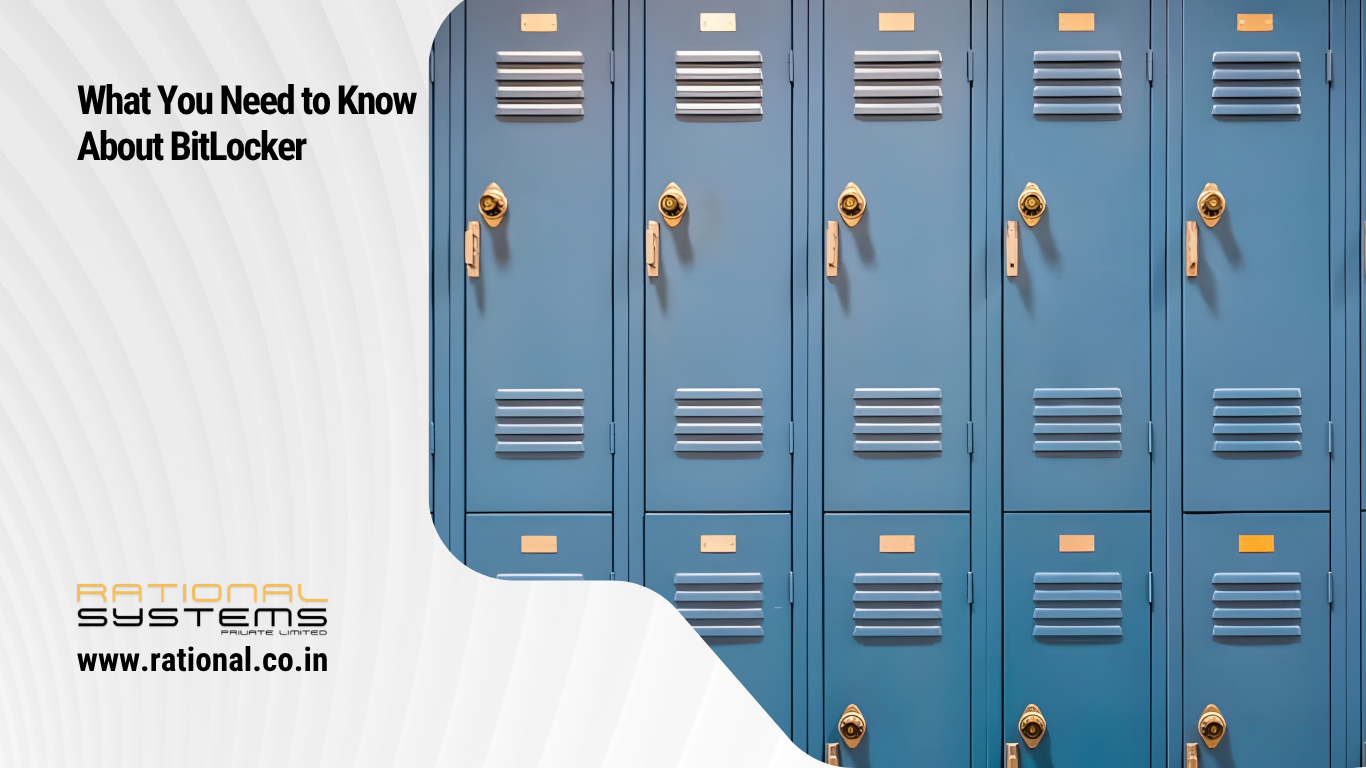
Think of it as a digital lock on your hard drive. Even if someone physically removes your drive and plugs it into another computer, they won’t be able to read a single file without the encryption key.
How Does BitLocker Work?
BitLocker uses AES (Advanced Encryption Standard) encryption — typically 128-bit or 256-bit — to scramble all data on a drive. When you turn on your computer, BitLocker verifies the integrity of the system before allowing access. This verification process often relies on a chip called the TPM (Trusted Platform Module), which stores the encryption keys securely in hardware.
Here’s a simplified breakdown of the process:
- Encryption — BitLocker encrypts all data written to the drive.
- Authentication — On startup, the system verifies identity via TPM, a PIN, a USB key, or a combination of these.
- Decryption — Once authenticated, the drive is transparently decrypted for normal use.
This happens seamlessly in the background, so day-to-day performance is barely affected.
Which Windows Versions Support BitLocker?
BitLocker is not available on every edition of Windows. Here’s a quick overview:
| Windows Edition | BitLocker Support |
|---|---|
| Windows 11/10 Pro | ✅ Full BitLocker |
| Windows 11/10 Enterprise | ✅ Full BitLocker |
| Windows 11/10 Education | ✅ Full BitLocker |
| Windows 11/10 Home | ⚠️ Device Encryption only (limited) |
If you’re running Windows Home, you get a simplified version called Device Encryption, which offers basic protection but lacks the advanced management features of full BitLocker.
Why Should You Use BitLocker?
1. Protection Against Theft
If your laptop is lost or stolen, BitLocker ensures that the thief cannot access your files — even if they remove the hard drive entirely.
2. Compliance Requirements
Many industries — healthcare, finance, legal — require data encryption by law or regulation (HIPAA, GDPR, PCI-DSS). BitLocker helps organizations meet these compliance standards.
3. Secure Data Disposal
When retiring or selling a computer, encrypted drives are far safer to dispose of. Without the key, old data is practically unrecoverable.
4. No Extra Cost
Since BitLocker is built into Windows Pro and Enterprise editions, there’s no need to pay for third-party encryption software.
How to Enable BitLocker
Enabling BitLocker is straightforward:
- Open the Start Menu and search for “BitLocker”
- Click Manage BitLocker
- Select the drive you want to encrypt
- Click Turn on BitLocker
- Choose how to unlock the drive (TPM, PIN, USB key)
- Select a recovery key backup method (Microsoft account, USB drive, or printed copy)
- Choose to encrypt used space only or the entire drive
- Click Start Encrypting
The encryption process runs in the background and may take anywhere from a few minutes to a few hours depending on drive size.
The Recovery Key — Don’t Lose It!
One of the most critical aspects of using BitLocker is safeguarding your 48-digit recovery key. This key is your last resort if you forget your PIN, replace your motherboard, or encounter a TPM error.
Best practices for storing your recovery key:
- Save it to your Microsoft account (accessible from any browser)
- Store it on a separate USB drive
- Print it and keep it in a secure physical location
- Save it to a network location if in an enterprise environment
Losing your recovery key and being locked out of your encrypted drive means your data is gone — permanently and irrecoverably. There are no backdoors.
BitLocker vs. BitLocker To Go
Standard BitLocker works on internal drives, but Microsoft also offers BitLocker To Go — a version designed specifically for removable storage devices like USB flash drives and external hard drives. It works the same way but adds password protection to portable media, making it ideal for securely transporting sensitive files.
Common Concerns and Misconceptions
“Does BitLocker slow down my computer?” Modern hardware handles BitLocker encryption with minimal performance impact — often less than 1-3% on SSDs with hardware acceleration.
“Is BitLocker hackable?” No encryption is 100% unbreakable, but BitLocker with a strong PIN and TPM is extremely difficult to breach. The most common vulnerabilities come from weak PINs or improperly stored recovery keys — not the encryption itself.
“Can IT administrators manage BitLocker remotely?” Yes. In enterprise environments, BitLocker integrates with Microsoft Intune and Active Directory, allowing centralized management, key recovery, and policy enforcement across all devices.
Final Thoughts
BitLocker is a powerful, free, and underutilized security tool that every Windows Pro user should consider enabling — especially on laptops and portable devices. In a world where a misplaced laptop can lead to a catastrophic data breach, full-disk encryption is no longer optional; it’s essential.
The setup takes less than 10 minutes. The peace of mind it offers lasts indefinitely.
Enable BitLocker today — before you need it, not after.