
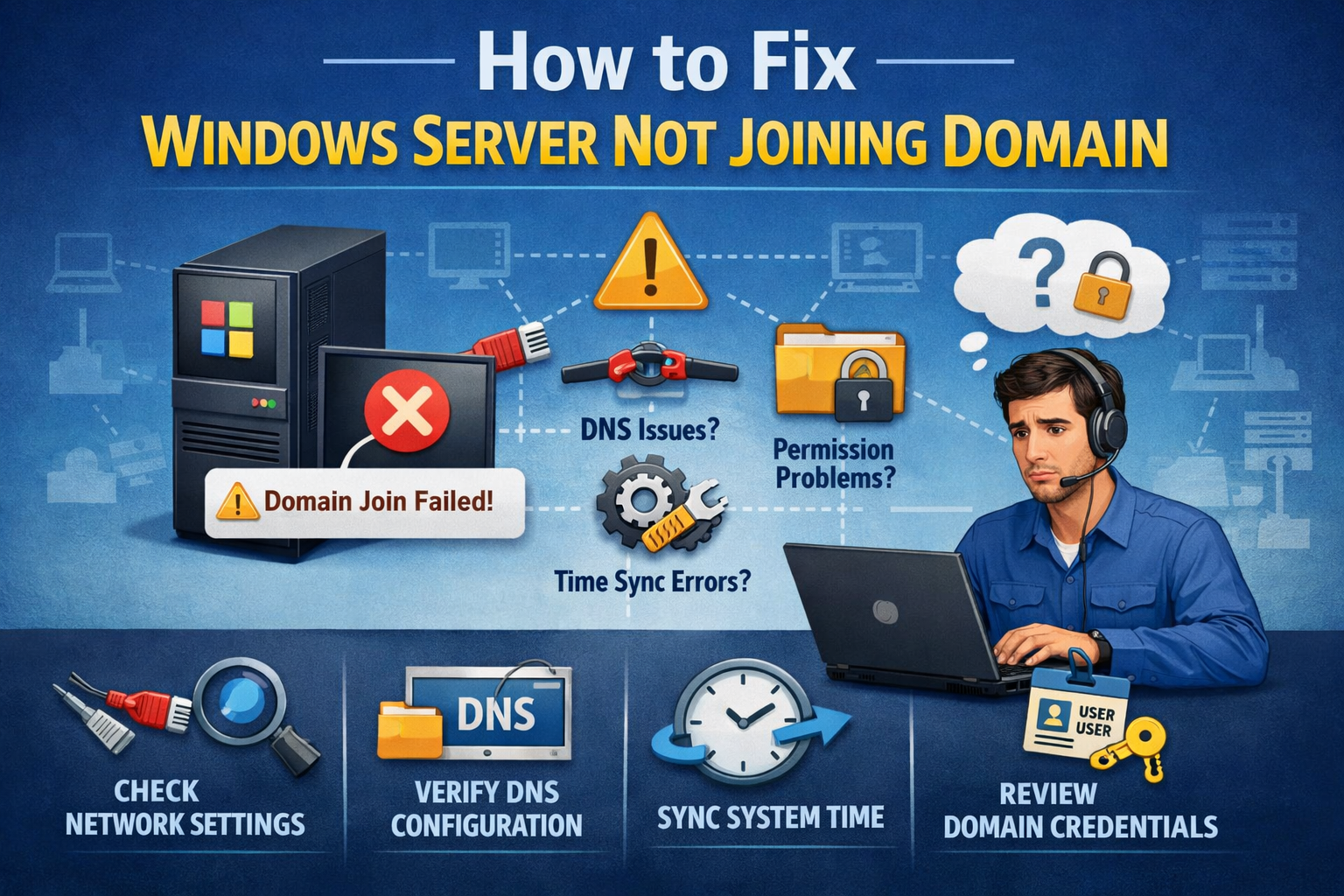
Setting up a Windows Server to join a domain is a critical task in IT environments. But sometimes, even after entering the right domain credentials, you may run into errors like:
- “An Active Directory Domain Controller for the domain could not be contacted”
- “The domain specified is not available”
- “The trust relationship between this workstation and the primary domain failed”
If your Windows Server is not joining the domain, don’t worry — this guide walks you through the most common causes and step-by-step fixes.
Common Reasons Why Windows Server Fails to Join a Domain
- 🌐 Network connectivity issues – DNS misconfiguration or unreachable domain controller
- 🔑 Incorrect domain credentials – Wrong username, password, or permissions
- ⚙️ DNS issues – Server pointing to public DNS instead of the domain controller
- 🖥️ Firewall restrictions – Blocking domain traffic (ports 88, 389, 445, etc.)
- 📅 Time synchronization errors – Server and domain controller clocks not aligned
- 🛠️ Corrupt computer account in Active Directory
Solutions to Fix Windows Server Not Joining Domain
1. Verify Network Connectivity
- Ping the domain controller by name and IP:
ping domaincontroller.yourdomain.com - Ensure the server can resolve the domain name. If not, fix DNS settings.
2. Configure DNS Properly
The server must use the domain controller’s IP as its DNS.
- Go to Control Panel → Network & Sharing Center → Adapter Settings.
- Edit IPv4 settings → Set Preferred DNS to the DC’s IP address.
- Restart the server.
💡 Avoid using Google DNS (8.8.8.8) or ISP DNS for domain joins.
3. Check Domain Credentials
- Use an account with Domain Admin or equivalent rights.
- Verify credentials by logging into another domain-joined machine.
4. Ensure Proper Time Synchronization
- Open Command Prompt and type:
w32tm /resync - If needed, set NTP to domain controller:
w32tm /config /manualpeerlist:domaincontroller.yourdomain.com /syncfromflags:manual /reliable:yes /update
5. Disable Firewalls Temporarily
- Some firewall rules block domain join traffic.
- Temporarily disable Windows Firewall:
netsh advfirewall set allprofiles state off - If joining succeeds, configure firewall rules accordingly.
6. Reset or Recreate the Computer Account
If the server existed in Active Directory before:
- Log in to the domain controller.
- Open Active Directory Users and Computers (ADUC).
- Locate the computer account → Delete or Reset it.
- Try joining the domain again.
7. Use Command Line to Join Domain
Instead of GUI, use netdom:
netdom join ServerName /domain:YourDomain.com /userd:DomainAdmin /passwordd:*
8. Check Event Viewer Logs
- Open Event Viewer → System Logs.
- Look for NETLOGON, DNS Client, or Kerberos errors for deeper clues.
When to Seek Professional Help
If you’ve tried the above fixes and still cannot join the domain, the issue could involve:
- Misconfigured Group Policies
- Replication errors in Active Directory
- Damaged SYSVOL or NETLOGON shares
At [Your Company Name], we provide expert consulting for Windows Server setup, domain troubleshooting, and Active Directory management. Whether it’s a small office setup or enterprise-grade infrastructure, we can help you get it right the first time.
Final Thoughts
A Windows Server not joining the domain usually points to DNS, credentials, or AD issues. By checking connectivity, fixing DNS, syncing time, and resetting computer accounts, most domain join problems can be resolved quickly.
If the issue persists, it’s best to consult IT professionals to avoid downtime and ensure your infrastructure remains secure and reliable.