
Table of Contents
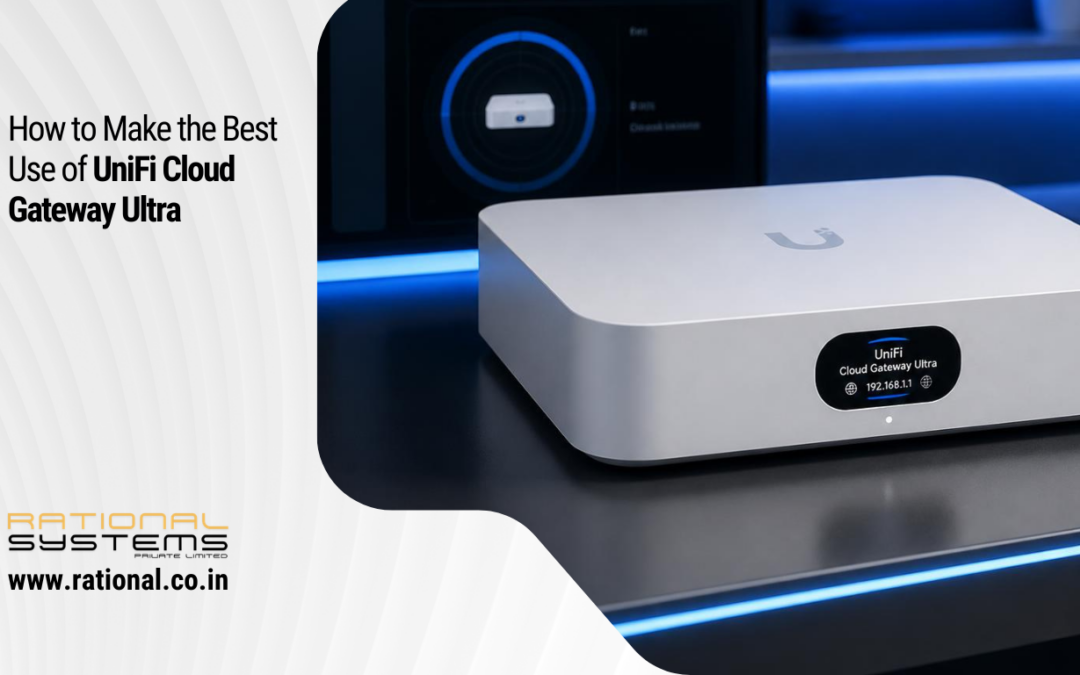
Modern SMB networks demand performance, security, and centralized management. A powerful yet cost-effective setup includes the UniFi Gateway Ultra paired with either the UniFi U6 LR (Long Range) or the UniFi U6+.
This guide explains step-by-step installation and configuration for a reliable, scalable business network.
1️⃣ Recommended Network Architecture
4
Typical SMB Setup:
ISP Modem
→ UniFi Gateway Ultra
→ UniFi PoE Switch
→ UniFi U6 LR / U6+ Access Points
→ Wired & Wireless Clients
2️⃣ Pre-Installation Checklist
Before starting, ensure:
- Active internet connection
- UniFi Cloud account (ui.com)
- UniFi Network Application (cloud or local controller)
- PoE switch (802.3at recommended for U6 LR)
- CAT6 cabling
- Proper rack or structured mounting
3️⃣ Step 1: Physical Installation
Install UniFi Gateway Ultra
- Connect ISP modem to WAN port.
- Connect LAN port to UniFi switch.
- Power on the device.
- Wait for LED stabilization.

Install UniFi U6 LR / U6+
- Mount on ceiling for best coverage.
- Connect via PoE cable from UniFi switch.
- Ensure PoE+ for U6 LR (higher power requirement).
- Wait for device to boot.

4️⃣ Step 2: Setup UniFi Controller
The Gateway Ultra is managed via UniFi Network Application.
Option A – Cloud Setup
- Login at network.ui.com
- Adopt Gateway Ultra
- Adopt Access Points
Option B – Local Controller
- Install UniFi Network Application on local server or Cloud Key
- Discover devices
- Click “Adopt”
Devices will update firmware automatically if required.
5️⃣ Step 3: Configure Internet (WAN Settings)
Navigate to:
Settings → Internet → WAN
Choose:
- DHCP (Most ISPs)
- PPPoE (If required by ISP)
- Static IP (If provided)
Test internet connectivity.
6️⃣ Step 4: Create Networks & VLANs
For SMB security, segmentation is essential.
Recommended VLAN Structure:
- VLAN 10 – Office Users
- VLAN 20 – Guest WiFi
- VLAN 30 – CCTV
- VLAN 40 – Servers
Steps:
Settings → Networks → Create New Network
Assign VLAN ID
Configure DHCP range
7️⃣ Step 5: Configure WiFi (SSID Setup)
Navigate to:
Settings → WiFi → Create New WiFi
Office WiFi:
- Security: WPA3 or WPA2/WPA3
- VLAN: 10
- Band Steering: Enabled
Guest WiFi:
- Enable Guest Policies
- VLAN: 20
- Enable client isolation
- Optional captive portal
8️⃣ Step 6: Security Configuration
Firewall Rules
- Block Guest VLAN to LAN access
- Allow internet-only access for guests
- Restrict inter-VLAN traffic where necessary
Threat Management
Enable:
- IDS/IPS
- GeoIP filtering (if required)
- Smart Queues (if bandwidth limited)
9️⃣ Step 7: Performance Optimization
For U6 LR (Long Range)
- Ideal for large floors (2000–3000 sq. ft.)
- Optimize transmit power (Medium recommended)
- Avoid max power unless required
For U6+
- Suitable for small offices (1000–1500 sq. ft.)
- Cost-effective WiFi 6 solution
Enable:
- Automatic channel optimization
- Minimum RSSI for better roaming
- Fast roaming (802.11r)
🔟 Monitoring & Maintenance
UniFi dashboard provides:
- Client statistics
- Bandwidth usage
- Security alerts
- Device health
- Firmware updates
Schedule:
- Quarterly firmware updates
- Access review
- Backup configuration export
Best Practices for Small & Medium Businesses
✔ Use VLAN segmentation
✔ Enforce WPA3
✔ Enable MFA on UniFi account
✔ Backup configuration regularly
✔ Mount APs on ceiling for optimal coverage
✔ Avoid mixing consumer routers in business networks
U6 LR vs U6+ – Which Should You Choose?
| Feature | U6 LR | U6+ |
|---|---|---|
| Coverage | Larger area | Moderate |
| Power | Requires PoE+ | Standard PoE |
| Ideal For | Medium offices | Small offices |
| Performance | Higher | Balanced |
Conclusion
Deploying UniFi Gateway Ultra with U6 LR or U6+ creates a powerful, secure, and scalable business network suitable for SMEs.
With proper VLAN segmentation, firewall configuration, and WiFi optimization, this setup delivers enterprise-grade performance at SMB cost.